
Updating users & groups imported to Signature 365 from Microsoft 365
Update which Microsoft 365 users and groups Signature 365 imports, including adding, removing, or importing everyone.
Scenario
You initially configured the import of users and groups from Microsoft 365, but wish to update the users and groups that are imported.
Solution
You can update the configuration within Signature 365 to add or remove groups, or to import all users and groups.
Excluding Microsoft 365 groups, all other Azure AD, Security and Distribution group types can be used for this step.
Follow the instructions below to update this setting.
- Log on to the Signature 365 Portal
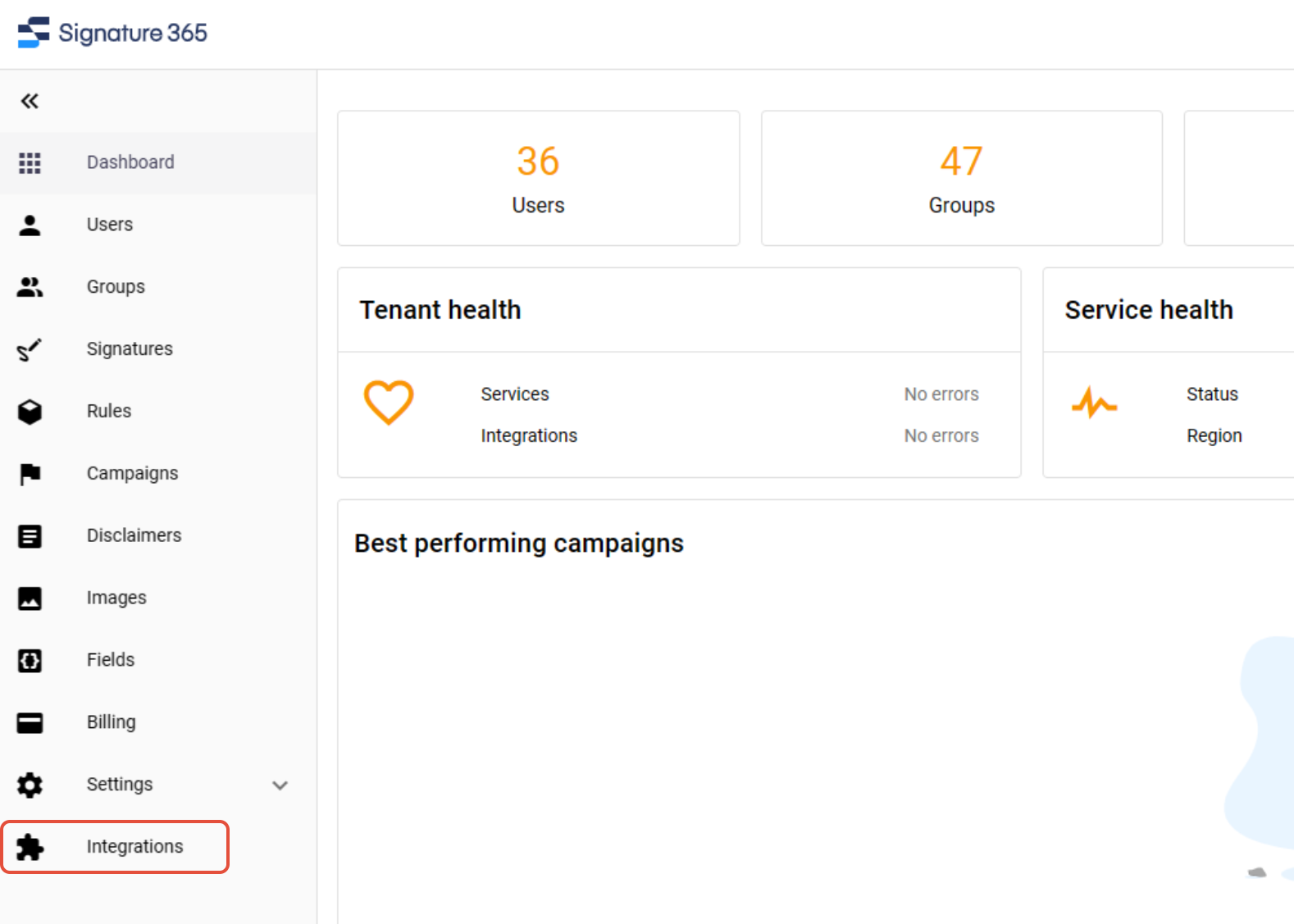
- Select the Integrations menu item
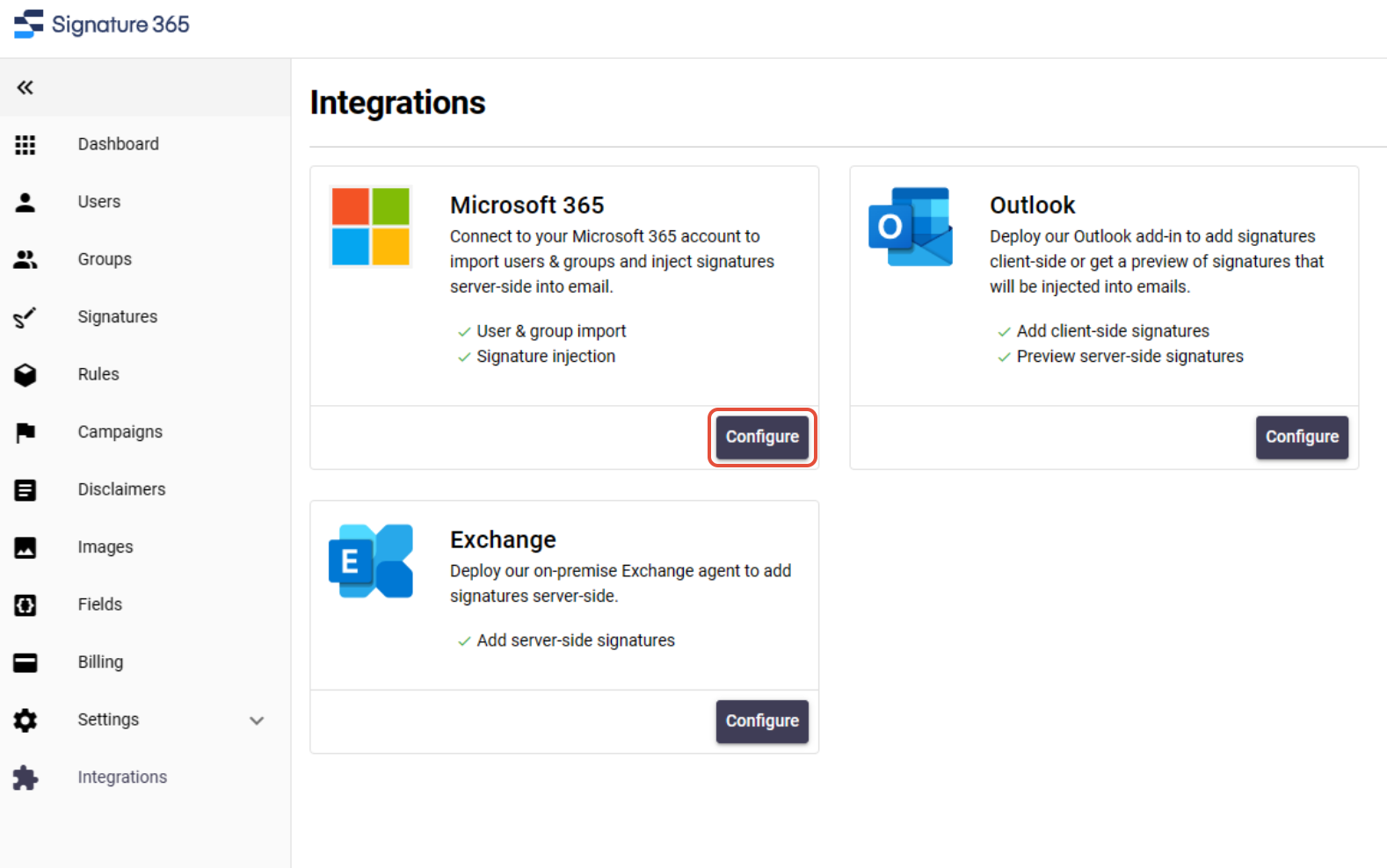
- From the Microsoft 365 card, select the Configure button
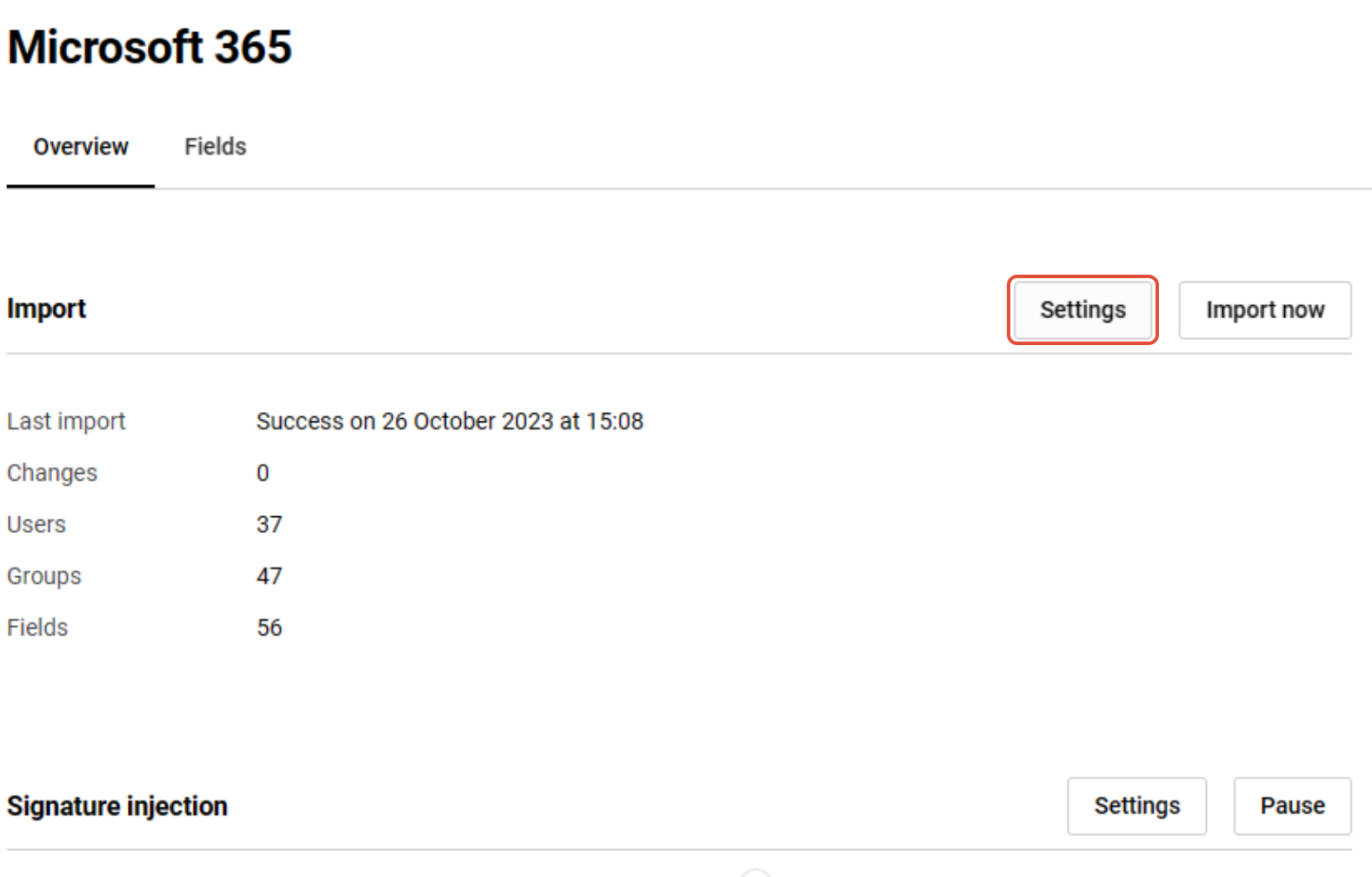
- Select the Settings button
- In the window that opens, you can add groups with the Add group option or remove groups by clicking the delete icon next to the group name. Alternatively, you can select the Import all users option to import all users and groups
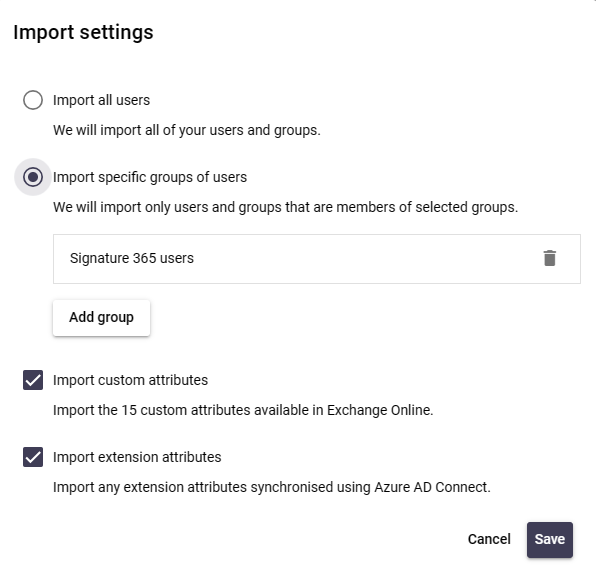
- Click the Save button to save your changes
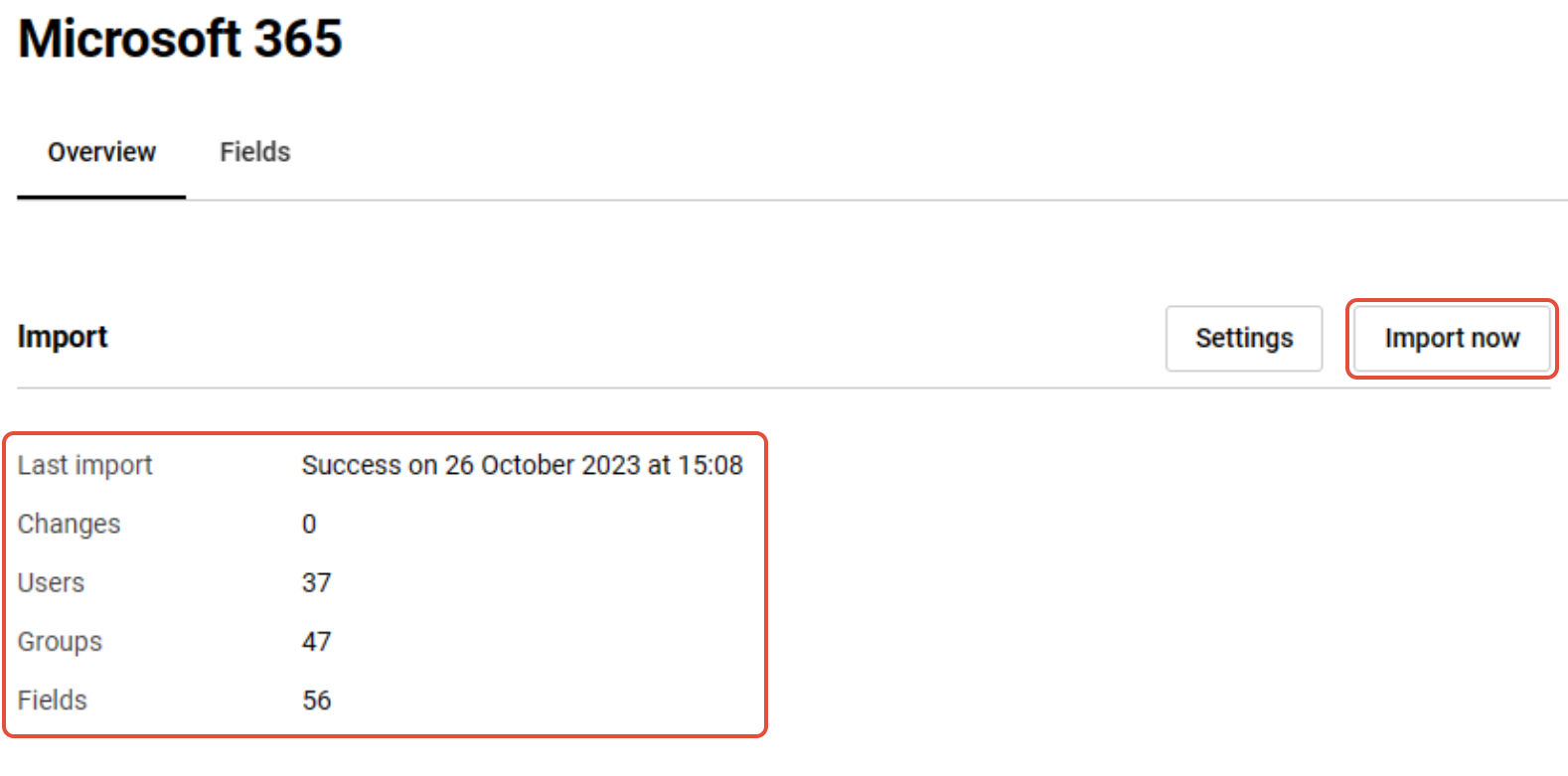
- Your changed users and groups selection will be reflected in the next scheduled import. Alternatively, you can click the Import Now button to trigger an immediate import.
The Changes, Users and Groups items will be updated to reflect the changes.
Registering an additional Signature 365 tenant
Follow the illustrated portal steps to register an additional Signature 365 tenant from your existing account.
Using hotlinked vs embedded images in Outlook
Compare hotlinked and embedded images in Outlook, including benefits, drawbacks, and common rendering issues.